Bring in your team.Decide what each role can do.
Invite editors, assistants and office managers. Start from a built-in role or build your own.
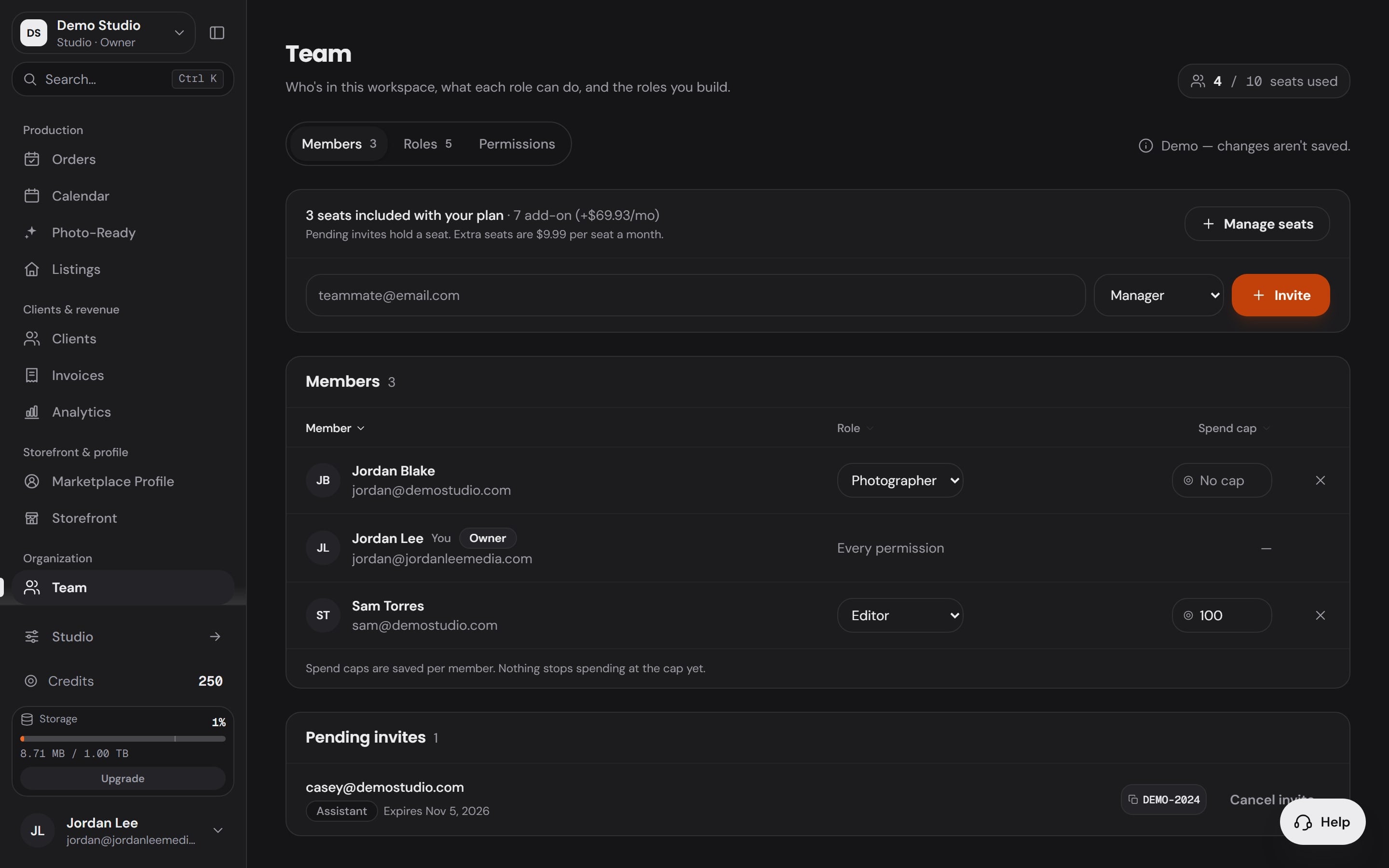
Roles
Pick a role.See what that seat can do.
Each role starts with a set of permissions, and the server checks them every time someone acts.
These are the defaults each role starts with. Any role except the owner can be edited for your workspace.
Manager
Photography studio
Can do
- Open the Studio, included
- Save edits in the Studio, included
- Run paid AI edits on the workspace's credits, included
- Deliver finished galleries to clients, included
- Open listings and download photos at full size, included
- Book shoots and pay for orders from credits, included
- Run the shared calendar, included
- See and edit every client record, included
- Edit listing details, included
- Send Photo Ready 360 prep to homeowners, included
- See analytics, included
- Invite teammates, change roles and read Activity, included
- See invoices and payments, included
- Edit the storefront and booking pages, included
Off by default
- Rename the workspace and switch modules, off by defaultTurn on Manage workspace name, icon & modules
- Buy plans and credits, and manage the card on file, off by defaultOnly the owner can give this.
- Edit the marketplace profile, off by defaultTurn on Edit the photographer profile
Build the role the job needs.Then hand it to anyone you invite.
Roles live on the Team page. Your changes apply to your workspace only, and Reset puts a built-in role back the way it came.
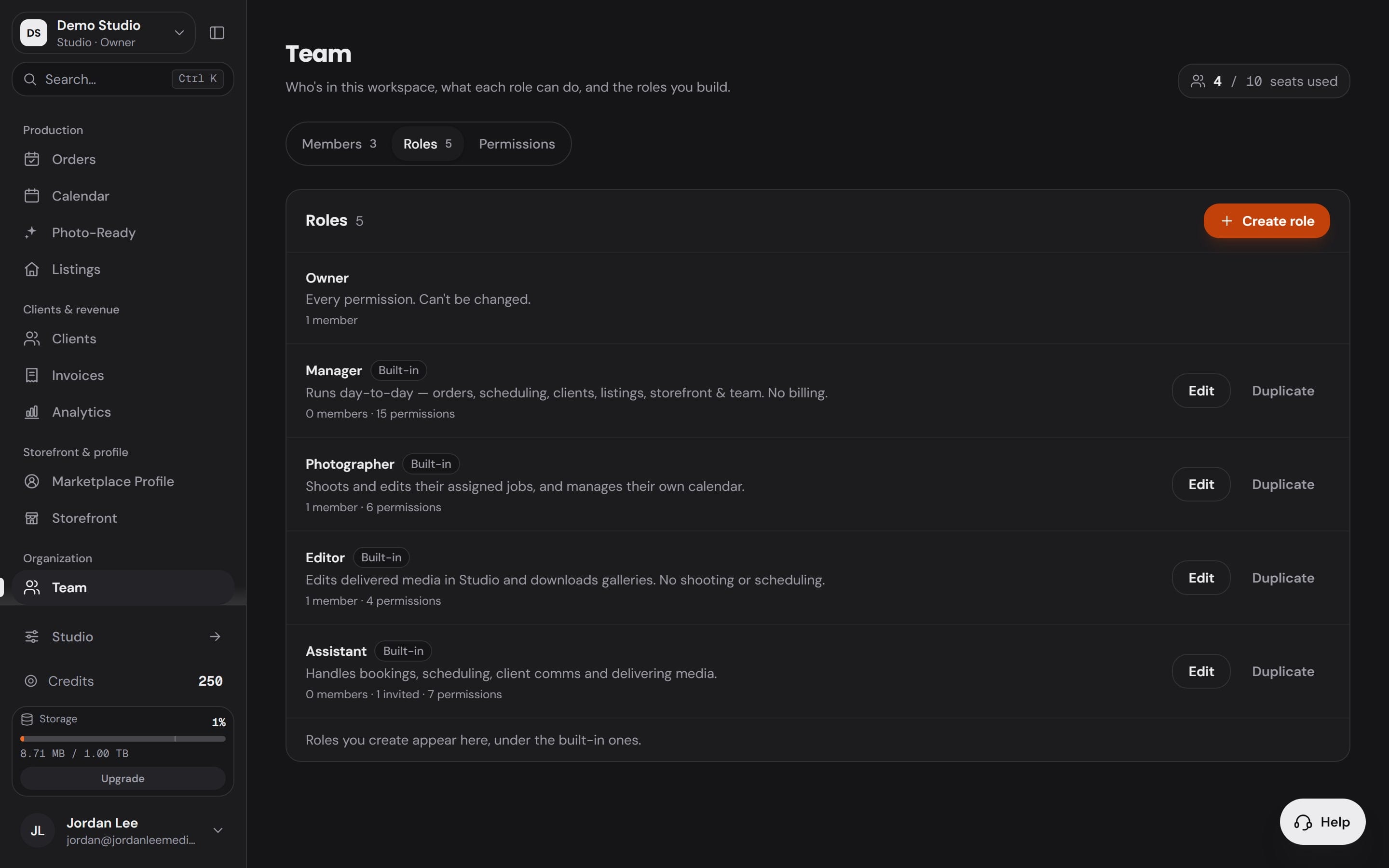
Start from a built-in role, or a blank one.
Manager, Photographer, Editor and Assistant come ready, under an Owner who holds everything. Edit one, duplicate it, or create a role from scratch.
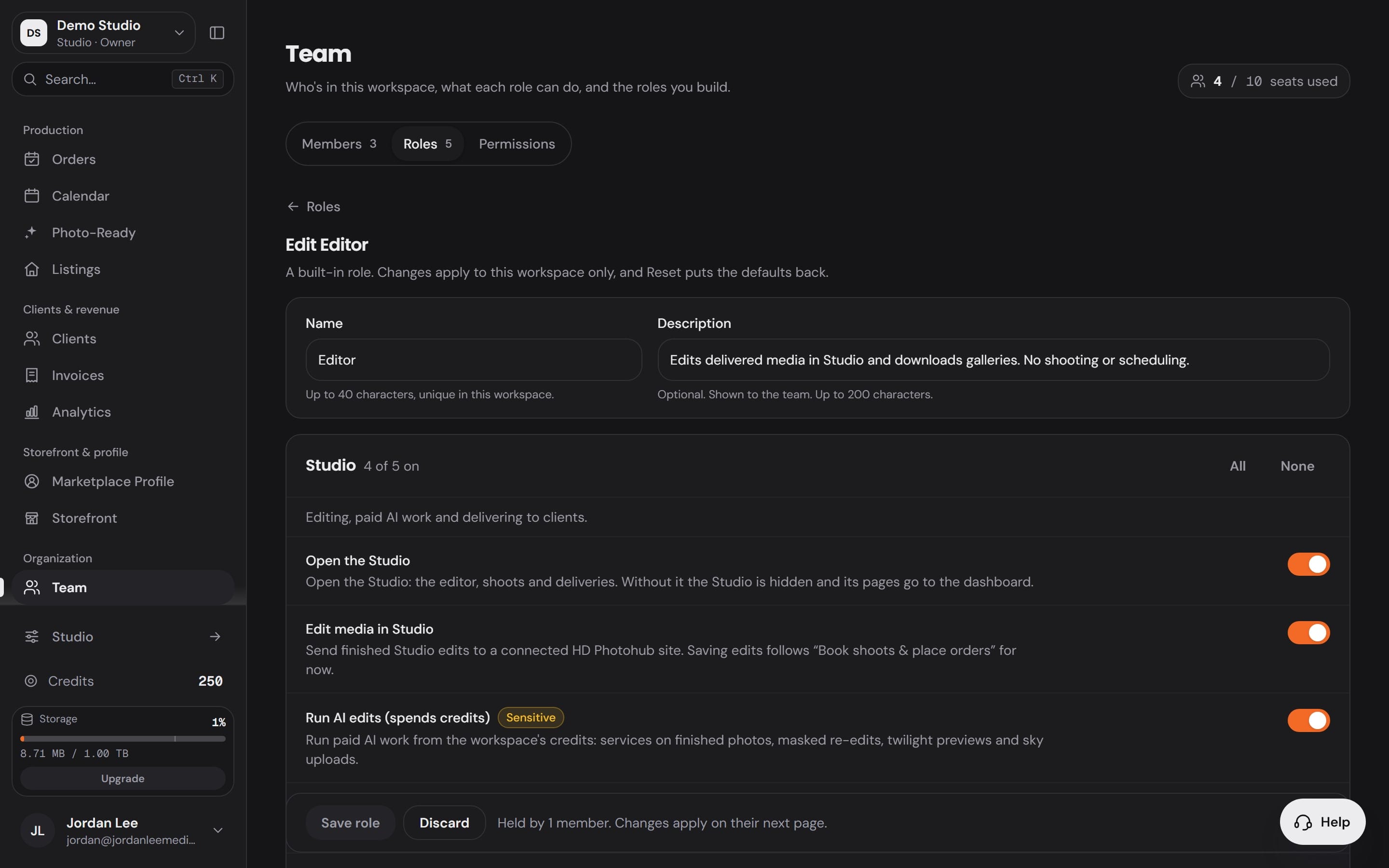
Name it the way your team talks.
Up to 40 characters, unique in your workspace, with a short description your team reads beside it.
Every permission is a switch.
18 switches in 3 groups: Studio, Workspace and Business. The 6 that spend credits, reach clients or change who can do what are marked sensitive.
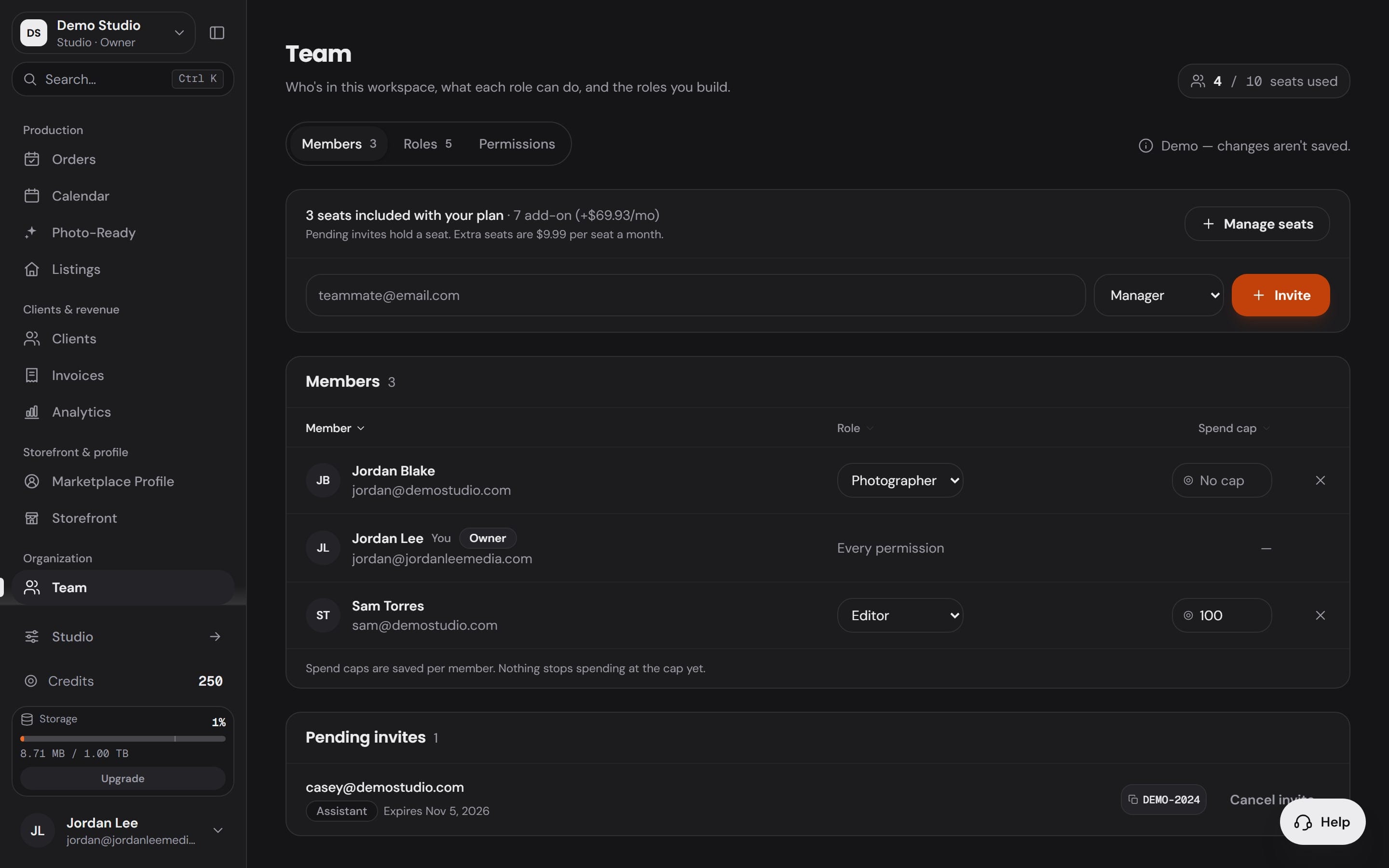
Hand it out with the invite.
Pick the role as you invite, or change it later from the members list. Nobody can give a permission they don't hold, and billing access is the owner's alone to give.
- Roles
- Name
- Switches
- Invite
- Workspace
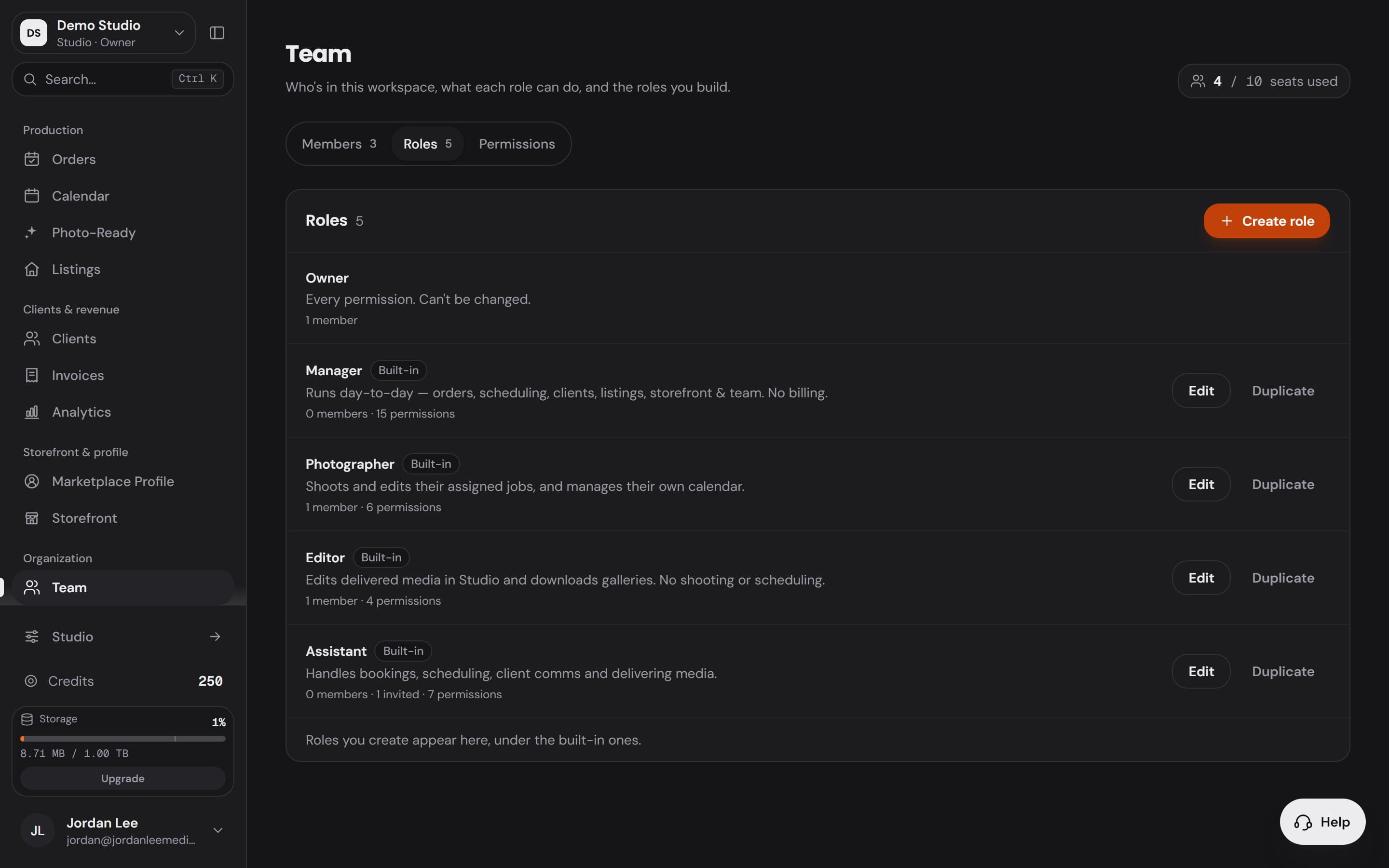
Roles
Start from a built-in role, or a blank one.
Manager, Photographer, Editor and Assistant come ready, under an Owner who holds everything. Edit one, duplicate it, or create a role from scratch.
- Workspace
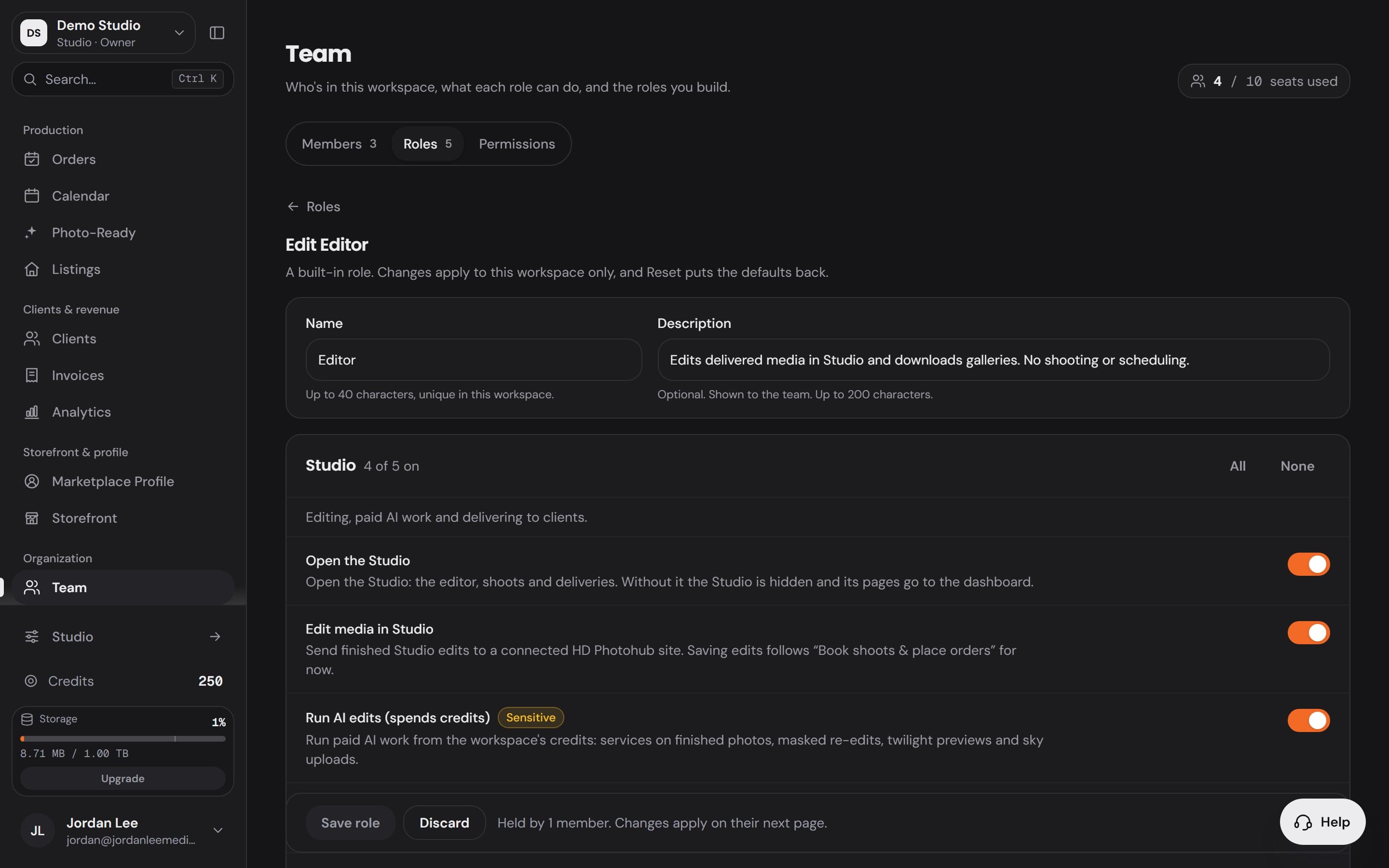
Name
Name it the way your team talks.
Up to 40 characters, unique in your workspace, with a short description your team reads beside it.
- Workspace
Switches
Every permission is a switch.
18 switches in 3 groups: Studio, Workspace and Business. The 6 that spend credits, reach clients or change who can do what are marked sensitive.
- Workspace
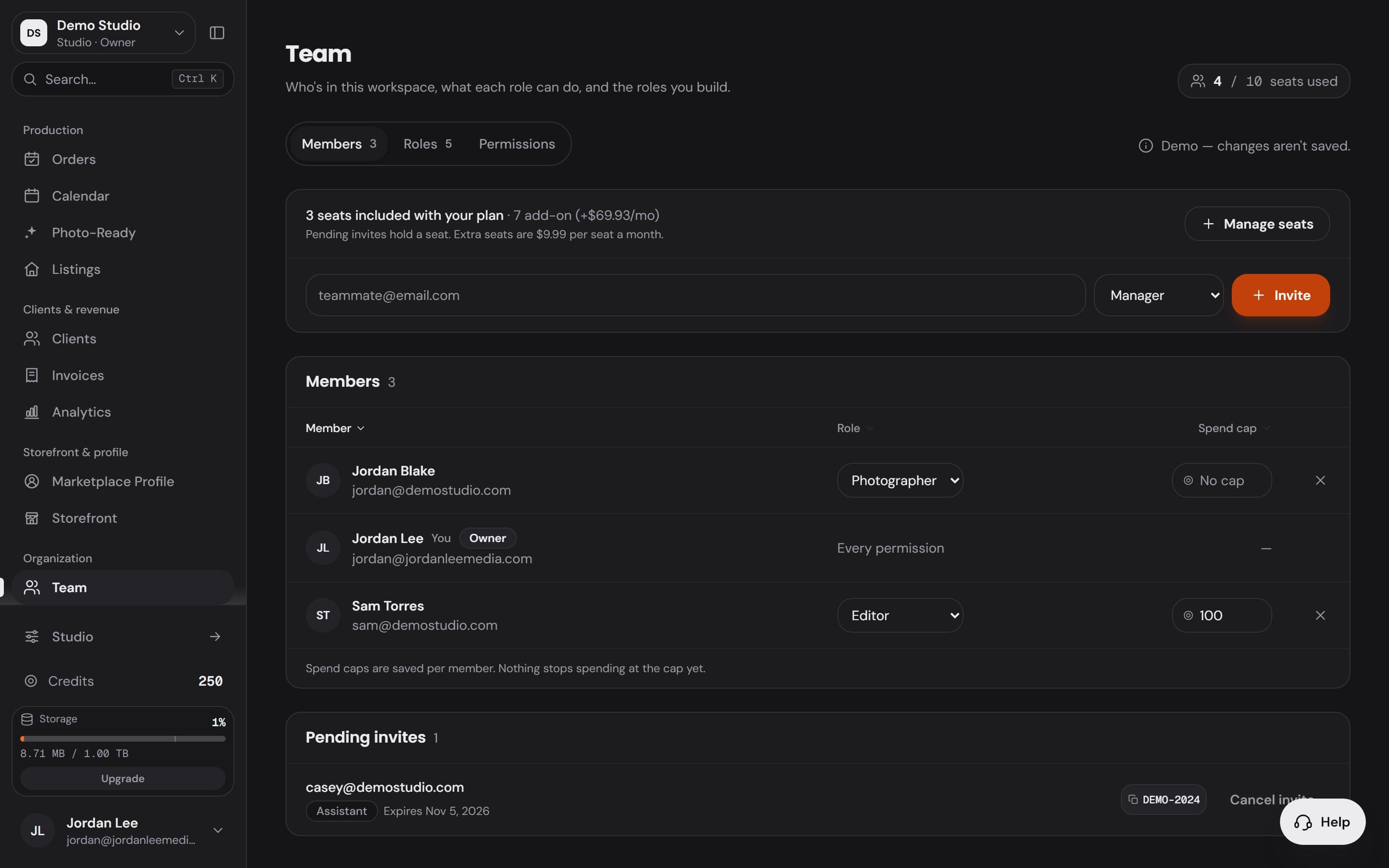
Invite
Hand it out with the invite.
Pick the role as you invite, or change it later from the members list. Nobody can give a permission they don't hold, and billing access is the owner's alone to give.
Spending is a permission.You decide who can use the credits.
Paying for an order takes “Book shoots & place orders”. A paid AI edit also takes “Run AI edits (spends credits)”. Both switches are marked sensitive, and a role with neither can’t spend the workspace’s credits.
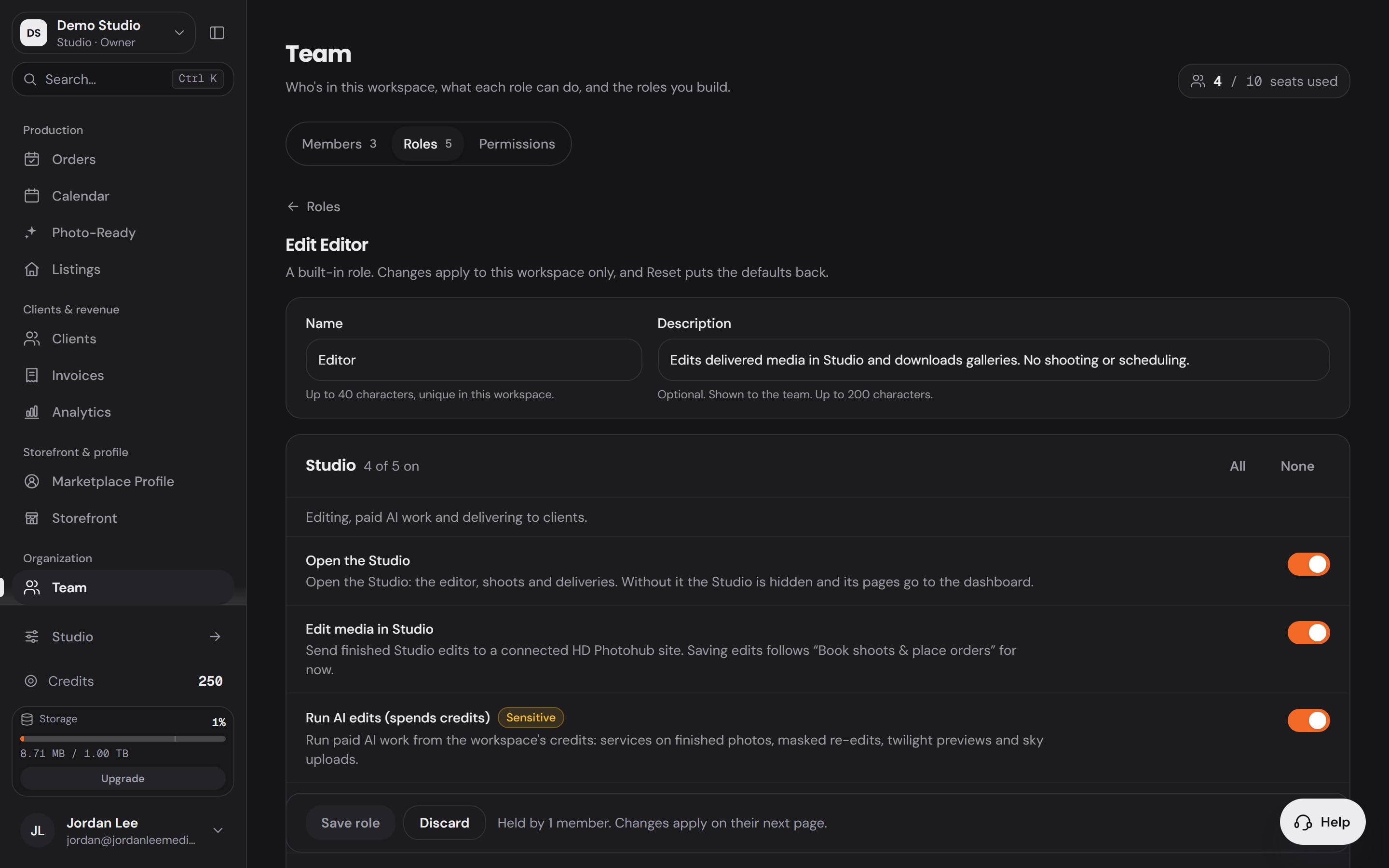 Marked sensitive in the role editor.Switches that spend credits, reach clients or change who can do what carry the mark.
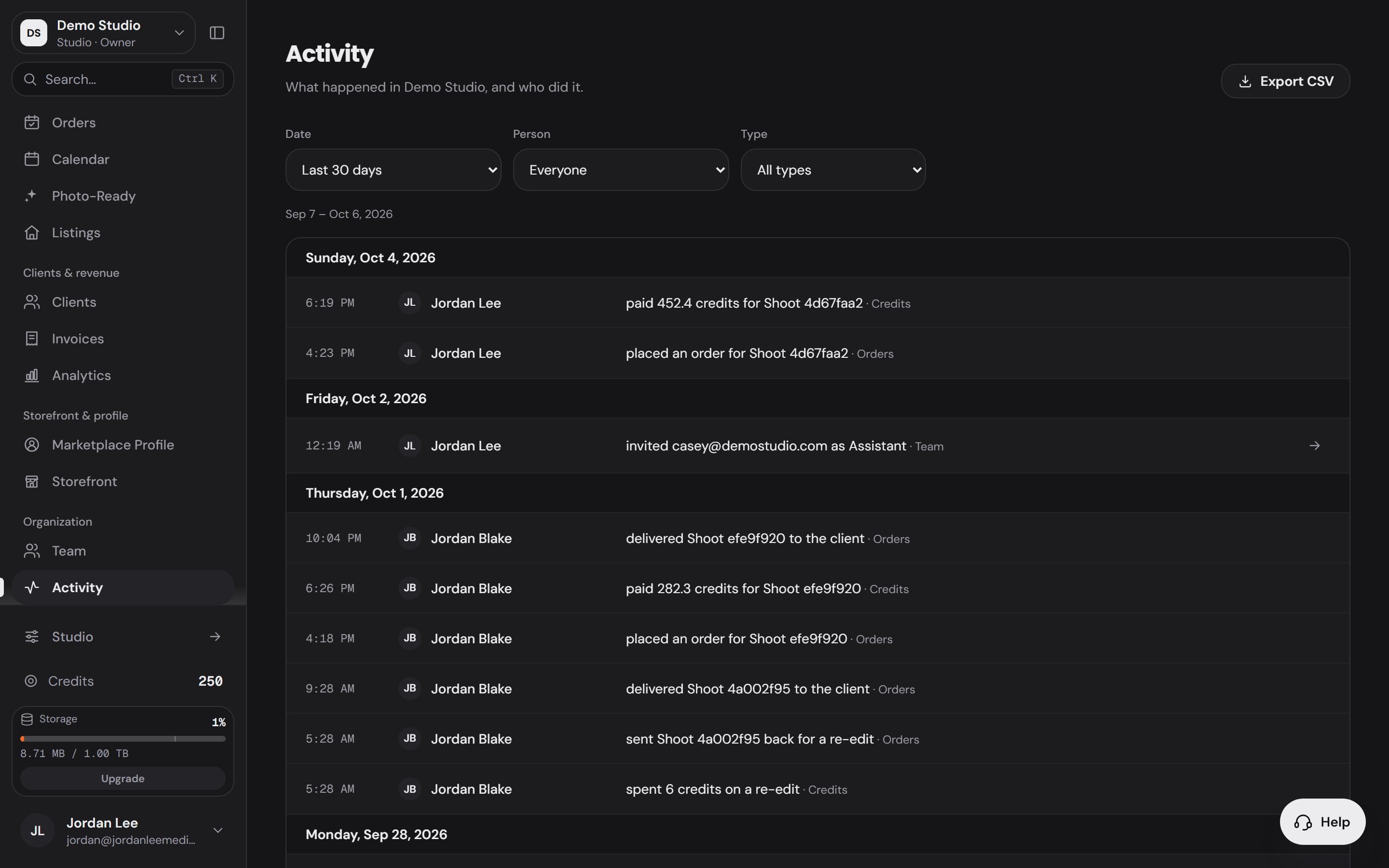 Every credit, with a name on it.Activity lists each payment and re-edit with the person and the minute.
Billing stays with the owner.
Paid AI edits, out of the box: Owner, Manager and Office / Team Manager.
See who did what.Every order, credit and invite, by name.
Activity is the workspace’s day, entry by entry, built from what the Workspace already records.
Every credit paid or spent, with the person who spent it.
Filter by date, person or type
Narrow the log to one teammate, one kind of entry or one stretch of dates, and load older entries as you go.
Export it as a CSV
The same list, as a file for your bookkeeper or your own records.
For the people who run the team
Activity opens for anyone whose role can invite and manage teammates.
Seats
Seats come with the plan.A seat is a person, in any role.
Business includes 3 seats and Enterprise 5, the owner included. An editor’s seat counts the same as an assistant’s, and a pending invite holds its seat until it is accepted or cancelled.

The first plan with room for a team
Business · 3 seats
Pay As You Go
No monthly fee
1 seatStarter
$29.99 a month
1 seatProfessional
$299.99 a month
1 seatBusiness
$499.99 a month
3 seatsEnterprise
$999.99 a month
5 seats
Seats price people, credits price editing, so adding a person never changes what an edit costs. Need more than 5? Talk to our team.
See every plan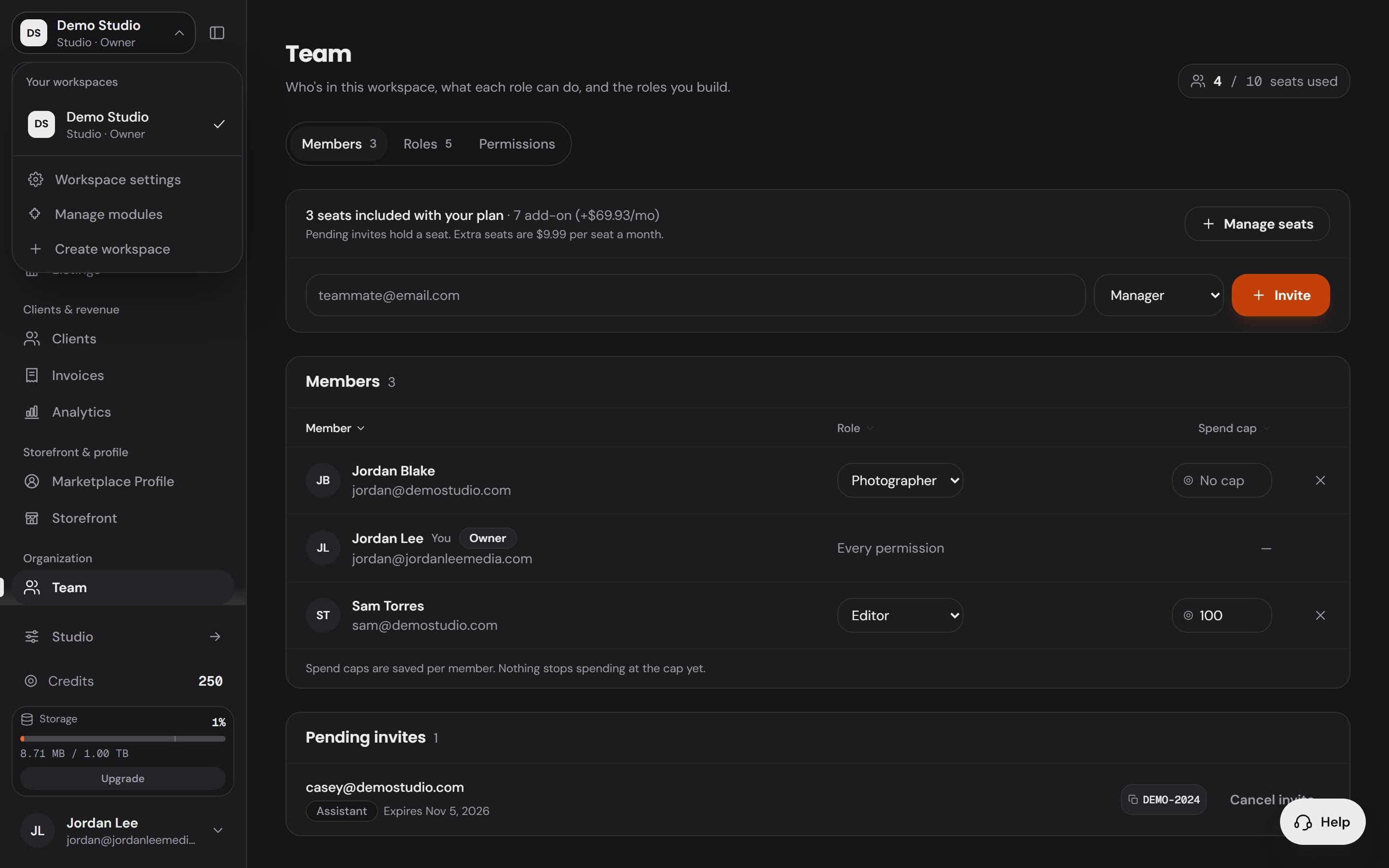
One login.Every workspace you belong to.
An editor can work for two studios from one account, and a photographer can run their own studio while holding a seat in someone else’s.
- Switch from the top of the sidebar. Your role, permissions and credits follow the workspace you are in.
- Create another workspace from the same menu, without a second account.
- Join with the emailed invite link, or with the short invite code your team shares.
- Leave a workspace you joined from its settings.
Questionsbefore you invite.
Which roles come built in?
A photography studio workspace comes with Manager, Photographer, Editor and Assistant, under the Owner, who holds every permission. A media company workspace adds roles such as Office / Team Manager, Media Coordinator and Billing Admin.
Can I create my own roles?
Yes. Create a role from scratch or duplicate one, give it a name of up to 40 characters, and turn on the permissions it needs. You can also edit a built-in role for your workspace, and Reset puts its defaults back.
Who can invite people and change roles?
Anyone whose role includes “Invite & manage teammates”. Nobody can give a permission they don't hold or change their own role, and billing access is the owner's alone to give or take back.
Can I control what a teammate spends?
Yes, by role. Paying for orders takes “Book shoots & place orders”, and paid AI edits also take “Run AI edits (spends credits)”. A role with neither can't spend the workspace's credits, and Activity lists every credit spent with the person who spent it.
How many seats come with my plan?
Pay As You Go, Starter and Professional include 1 seat, Business includes 3 seats and Enterprise includes 5 seats, the owner counted. Extra seats aren't sold on their own: a larger plan includes more, and for a bigger team you can talk to us.
Do seats change what edits cost?
No. Seats price people and credits price editing, so adding a teammate never changes what an edit costs.
What happens when I send an invite?
They get an email with a link that is good for 14 days, and the Team page gives you a short invite code to share as well. The invite holds a seat until it is accepted or cancelled, and once they join, the Team page shows them what their role lets them do.
Can one person belong to two workspaces?
Yes. One account can own or join several workspaces, so an editor can work for two studios. Permissions and credits always come from the workspace that is open.
Are permissions enforced, or just hidden?
Enforced. The server checks the role's permissions when someone acts, and the menus hide what a role can't open.
Bring in the whole team.
Roles that fit the job, seats with every plan, and one login for every workspace you work in.